Getting Started
Datasets
This section will cover basic functionality for accessing a Limbo Data Format dataset. To begin, we’ll import the library and create an instance of limbo.data.Dataset, which provides access to the dataset’s samples:
[1]:
import limbo.data

dataset = limbo.data.Dataset("data")
Once the dataset object has been created, you can treat it like any Python sequence. For example, to get the number of samples in the dataset, use len():
[2]:
len(dataset)
[2]:
4
Similarly, use normal notation to access a sample by its index:
[3]:
dataset[1]
[3]:
limbo.data.Sample(path='/Users/tshead/src/limbo-user/docs/data/image_0000025.json')
You can also iterate over the samples in a dataset:
[4]:
for sample in dataset:
    print(sample)
limbo.data.Sample(path='/Users/tshead/src/limbo-user/docs/data/image_0000000.json')
limbo.data.Sample(path='/Users/tshead/src/limbo-user/docs/data/image_0000025.json')
limbo.data.Sample(path='/Users/tshead/src/limbo-user/docs/data/image_0001785.json')
limbo.data.Sample(path='/Users/tshead/src/limbo-user/docs/data/image_0014.json')
Note that we supplied the filesystem path when creating limbo.data.Dataset. You can also pass multiple paths at creation time, and the dataset object will provide access to all of them as if they were a single larger dataset (in this case we’re using the same dataset twice, just for illustration):
[5]:
dataset = limbo.data.Dataset(["data", "data"])
len(dataset)
[5]:
8
Samples
Now let’s go back to our original dataset and focus on the samples themselves:
[6]:
dataset = limbo.data.Dataset("data")
sample = dataset[1]
The first thing we can do is inspect the sample’s filesystem location:
[7]:
sample.path
[7]:
'/Users/tshead/src/limbo-user/docs/data/image_0000025.json'
… note that the sample’s path is always the path to its JSON metadata file.
Next, let’s take a look at the sample’s image:
[8]:
from IPython.display import display

if sample.image:
    display(sample.image)
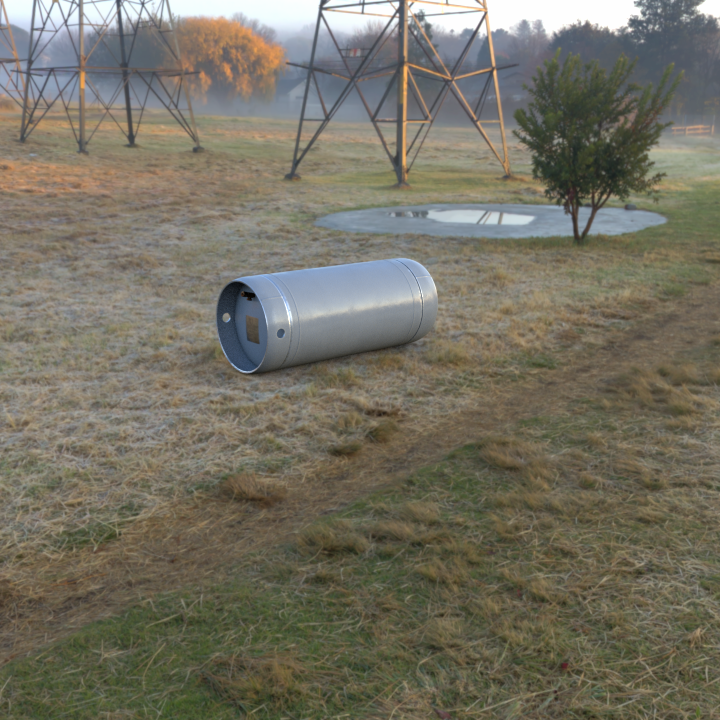
Note that we tested to see if the image exists before trying to display it - because there are many optional features in Limbo datasets, it’s always important to make sure a feature exists before trying to use it.
Because Limbo uses the Imagecat library for its image processing and data structures, the sample’s image property returns an instance of imagecat.data.Image. The latter includes special integration with Jupyter notebooks, which is why we’re able to use IPython.display.display() to view it.
Synthetic Samples
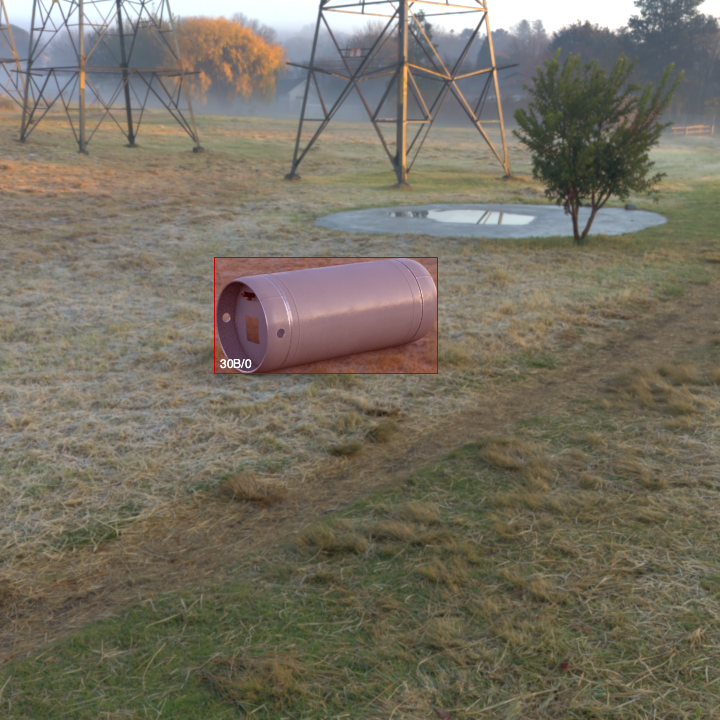
If a sample is synthetically generated (instead of a real photograph), it may have additional information that we can test for. For instance, a synthetic image with cryptomatte information can provide a ground-truth bounding box for the object in the image:
[9]:
if sample.synthetic and sample.synthetic.cryptomatte:
    print(sample.synthetic.cryptomatte.bbox())
(214.92359272315335, 257.4370536226934, 222.6302419923792, 116.00767362268033)
The bounding box is returned as a (left, top, width, height) tuple, with all values measured in absolute pixels. Similarly, we can retrieve contours for the object:
[10]:
if sample.synthetic and sample.synthetic.cryptomatte:
    print(sample.synthetic.cryptomatte.contours())
[array([[257.        , 373.25668588],
       [257.93690969, 373.        ],
       [258.        , 372.97721   ],
       ...,
       [255.        , 373.39696944],
       [256.        , 373.35178746],
       [257.        , 373.25668588]]), array([[226.51132607, 321.        ],
       [226.        , 321.33685895],
       [225.        , 321.48317901],
       [224.        , 321.37528957],
       [223.54996754, 321.        ],
       [223.        , 320.32519655],
       [222.74195465, 320.        ],
       [222.3557814 , 319.        ],
       [222.19531042, 318.        ],
       [222.15605268, 317.        ],
       [222.44486157, 316.        ],
       [222.66498807, 315.        ],
       [223.        , 314.5537076 ],
       [223.43045845, 314.        ],
       [224.        , 313.47857159],
       [224.57032703, 313.        ],
       [225.        , 312.62941523],
       [226.        , 312.52837992],
       [227.        , 312.59489675],
       [227.51327249, 313.        ],
       [228.        , 313.51254888],
       [228.38405922, 314.        ],
       [228.67694783, 315.        ],
       [228.98184307, 316.        ],
       [228.85758689, 317.        ],
       [228.59757475, 318.        ],
       [228.37472195, 319.        ],
       [228.        , 319.51609077],
       [227.62027971, 320.        ],
       [227.        , 320.64835459],
       [226.51132607, 321.        ]])]
Note that the contours are a collection of one-to-many polygons, where each polygon is an array of 2D absolute pixel coordinates relative to the top-left corner of the image. Multiple polygons are returned when there are “holes” in the contour, which is the case here. To understand why this instance contains a hole, let’s look at a matte image that contains per-pixel occupancy for this instance:
[11]:
if sample.synthetic and sample.synthetic.cryptomatte:
    display(sample.synthetic.cryptomatte.matte())

If you look near the left edge of the cylinder, you’ll see the small black oval where a hole in its side allows the background to show through.
While we’re at it, let’s view the contours superimposed over the image:
[12]:
if sample.synthetic and sample.synthetic.cryptomatte:
    display(sample.synthetic.cryptomatte.preview(show_contours=True).makeImageSnapshot())
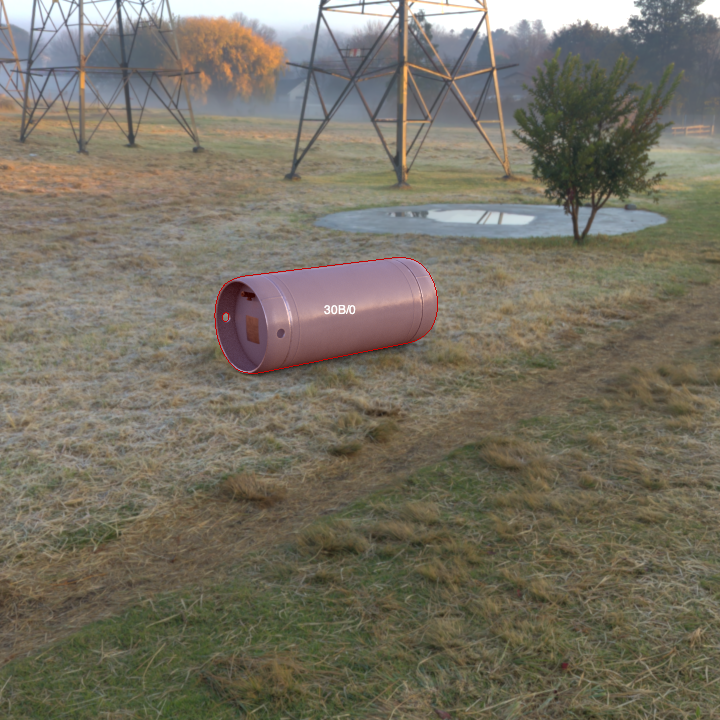
If you look closely again, you’ll see that the second contour outlines the hole in our object.
Finally, we can preview the bounding box over the original image:
[13]:
if sample.synthetic and sample.synthetic.cryptomatte:
    display(sample.synthetic.cryptomatte.preview(show_bboxes=True).makeImageSnapshot())